Key takeaways
- "Best monitors" is a broad search, and the useful way to narrow it is to decide what the screen does most of the day.
“Best monitors” is a broad search, and the useful way to narrow it is to decide what the screen does most of the day. A monitor for spreadsheets and email rewards sharpness, eye comfort, and an adjustable stand. A monitor for games rewards refresh rate and fast response. The ten models in this list are all full HD (1920×1080) panels between roughly 22 and 27 inches, so the choice comes down to panel type, refresh rate, ports, and how the stand moves.
This guide suits home-office buyers, students, and casual gamers who want a dependable second or primary display without paying for 4K. Everything is judged from the specs in each listing title, so confirm cable inputs and mounting details on the product page. Where a title does not name a feature, such as DisplayPort or a panel type, treat it as unconfirmed rather than assume it is there. In 2026, a 100Hz to 144Hz full HD monitor is the normal budget baseline, which makes the finer points of panel type and connectivity the real differences.
Quick Picks
Our top picks




As an Amazon Associate we earn from qualifying purchases at no extra cost to you.
| Product | Best for | Key spec from the title |
|---|---|---|
| Philips 241V8LB | Quiet office work | 24-inch VA, 100Hz, flicker-free, 4ms GtG |
| Sceptre E225W-FW144 | Compact gaming desk | 22-inch, up to 144Hz, DisplayPort and HDMI |
| Dell SE2726H | Large IPS for mixed use | 27-inch IPS, 144Hz, 1ms, FreeSync |
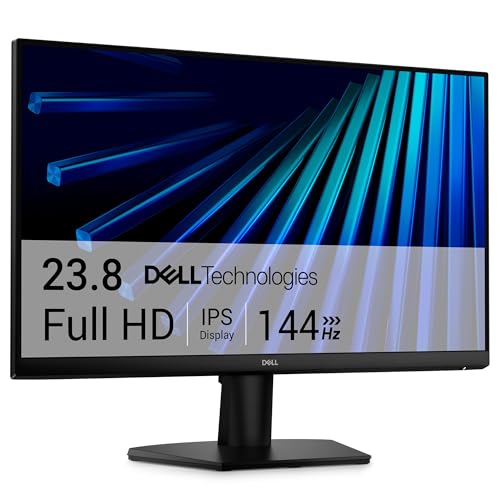
| Dell SE2426H | Standard-size IPS | 23.8-inch IPS, 144Hz, 1ms, 2x HDMI |
| Sceptre 27-inch Prime | Bright, colorful gaming | 27-inch, 100Hz, 100% sRGB, DisplayPort |
| Acer KB272 G0bi | Office plus play at 27 inches | 27-inch IPS, 120Hz, sRGB 99% |
| Dell S2425HSM | Adjustable ergonomics | 23.8-inch, 144Hz, height/tilt/pivot/swivel |
| Sceptre C248W-1920RN | Curved immersion | 24-inch curved R1500, 98% sRGB |
| Samsung S36GD | Curved 27-inch screen | 27-inch 1800R, 100Hz, Game Mode |
| Acer KB242Y G0bi | Small IPS office display | 23.8-inch IPS, 120Hz, sRGB 99% |
How to Choose
Size versus resolution
At 1920×1080, pixel density drops as the screen grows. A 24-inch panel looks crisp at normal desk distance, while 27 inches looks softer up close but gives more working area. If you sit within arm’s length and read small text, stay at 24 inches; if you sit farther back or watch video, 27 inches works well.
Panel type and refresh rate
IPS panels keep colors and brightness consistent from angles, while VA panels typically offer deeper contrast. For smooth motion, 100Hz is a clear upgrade over 60Hz, and 120Hz to 144Hz suits games. Ignore a “1ms” label as a pure quality signal; it refers to a best-case response setting and says little about overall image clarity.
Ports, speakers, and adaptive sync
HDMI covers most uses, and DisplayPort is useful on a gaming PC for higher refresh rates. VGA is only a legacy link for old equipment. Built-in speakers are convenient but modest, so do not count on them for music. AMD FreeSync or Adaptive Sync reduces screen tearing when a graphics card drives frames unevenly.
Stand and mounting
Many budget monitors give you tilt only. If you want to raise the screen or rotate it into portrait, look for height and pivot support in the title, or confirm VESA mounting for a monitor arm. Budget models also tend to skimp on brightness and color accuracy, so a stated sRGB coverage figure helps.
The 10 Best Options
Philips 241V8LB
This 24-inch VA monitor lists a 100Hz refresh rate, 4ms GtG, Adaptive Sync, flicker-free backlighting, and VESA mounting. It suits an office worker who wants a calm, simple display for long days.
- Strength: flicker-free technology and a low blue light mode support eye comfort.
- Strength: VA contrast adds depth to dark scenes and text.
- Trade-off: the stand offers tilt only, and HDMI 1.4 limits some modern features.
Skip it if you want a height-adjustable stand or very wide viewing angles. Pair it with a separate monitor arm through the VESA pattern if the fixed tilt bothers you; that fix is inexpensive and keeps the picture quality you chose it for.
Sceptre E225W-FW144
The 22-inch Sceptre lists full HD, up to 144Hz, HDMI, DisplayPort, and built-in speakers. It fits a small desk or a first gaming setup where space matters more than screen area.
- Strength: 144Hz and DisplayPort support give smooth motion at a compact size.
- Strength: built-in speakers save desk clutter.
- Trade-off: at 22 inches the working area is limited for multitasking.
Skip it if you want a larger canvas or an IPS panel; the title does not specify panel type. Many buyers use a 22-inch screen as a side display next to a laptop, where its modest size is an advantage rather than a flaw.
Dell SE2726H
This 27-inch IPS monitor lists 144Hz, a 1ms response setting, AMD FreeSync, TUV eye-comfort certification, and two HDMI ports. It is for someone who wants a larger screen that handles both documents and games.
- Strength: IPS technology keeps color consistent across the large panel.
- Strength: 144Hz and two HDMI inputs add flexibility.
The trade-off is the tilt-only stand. Skip it if you need to rotate or raise the screen. Because it is large for 1080p, sit a little farther back than you would with a 24-inch panel, and the picture will look cleaner.
Dell SE2426H
The smaller sibling is a 23.8-inch IPS with 144Hz, 1ms, FreeSync, and two HDMI ports. It fits desks where 27 inches is too large and a crisper image per inch is wanted.
- Strength: 1920×1080 on a 23.8-inch panel gives sharper text than the 27-inch version.
- Strength: the TUV eye-comfort certification points to low-blue-light and flicker-reduction features.
- Trade-off: the stand tilts but does not adjust height.
Skip it if you need DisplayPort or a flexible stand. It is a straightforward match for a student desk, a living-room PC, or a home-office laptop dock.
Sceptre 27-inch Prime Gaming Monitor
This 27-inch Sceptre lists 100Hz, 1ms, DisplayPort, two HDMI ports, 100% sRGB, FreeSync, and built-in speakers in a frameless design. It suits gamers and creators who care about color range.
- Strength: 100% sRGB coverage is the highest stated figure in the list.
- Strength: DisplayPort and two HDMI inputs cover several devices.
- Trade-off: the 100Hz cap is lower than the 144Hz panels.
Skip it if competitive frame rates matter most. Color-focused buyers, such as people editing family photos for sharing online, will value the stated coverage, though the panel type is not specified in the title.
Acer KB272 G0bi
The Acer is a 27-inch IPS monitor at 120Hz with a 1ms setting, AdaptiveSync, 99% sRGB, HDMI, VGA, VESA mounting, and a bluelight filter. It suits a household display used for homework, streaming, and games.
- Strength: IPS and 99% sRGB give reliable color.
- Strength: VESA mounting allows a monitor arm.
- Trade-off: HDMI and VGA only, with no DisplayPort named.
Skip it if you plan to run a high-end graphics card over DisplayPort. The built-in bluelight filter helps in evening sessions, and the VESA mount makes it easy to free up desk space with an arm.
Dell S2425HSM
This 23.8-inch Dell lists 144Hz, 1ms, two 3W speakers, HDMI, and a stand with height, tilt, pivot, and swivel adjustment. It is the ergonomic choice for long desk hours.
- Strength: the fully adjustable stand is unusual at this tier.
- Strength: built-in speakers and 144Hz serve work and play.
- Trade-off: only HDMI is named, with no DisplayPort.
Skip it if you want a bigger screen or multiple input types. Shoppers who split time between typing and watching video will appreciate being able to pivot into portrait for long documents or code.
Sceptre C248W-1920RN
A 24-inch curved panel with an R1500 curve, 1080p, 98% sRGB, two HDMI ports, VGA, speakers, and a VESA wall mount. It fits buyers who enjoy the wraparound feel of a curve.
- Strength: the gentle curve adds immersion at a small size.
- Strength: two HDMI ports plus VGA support older and newer devices.
- Trade-off: a curve on a 24-inch panel is a style choice, not a productivity gain.
Skip it if you want a flat screen for design work or side-by-side windows. Read the curve rating as gentle; it will not feel dramatic at normal desk distance.
Samsung S36GD
The Samsung is a 27-inch 1800R curved full HD monitor with 100Hz, Game Mode, Eye Comfort technology, HDMI, and D-sub. It suits casual viewers who want a bigger curved screen from a familiar brand.
- Strength: the 1800R curve and 27-inch size feel immersive for video.
- Strength: Eye Comfort features suit longer sessions.
- Trade-off: D-sub is an old connection, and DisplayPort is not named.
Skip it if you want more than 100Hz. Shoppers already invested in the brand’s phones or TVs may like the familiar menus and styling.
Acer KB242Y G0bi
This 23.8-inch IPS lists 120Hz, 1ms, AdaptiveSync, 99% sRGB, HDMI, VGA, VESA mounting, and a bluelight filter. It is a practical small office screen.
- Strength: IPS color at a compact size is sharp for text.
- Strength: 120Hz gives smoother scrolling than 60Hz displays.
- Trade-off: no DisplayPort or adjustable stand is named.
Skip it if you need ergonomic stand options out of the box. It is a safe, low-drama option for a spare room or a child’s homework desk.
Which One Fits Your Situation
You work at a desk for hours
The Dell S2425HSM stands out for its height, pivot, and swivel adjustments. For a calmer VA picture, the Philips 241V8LB is a quieter option.
You want one monitor for work and games
The Dell SE2726H pairs a 27-inch IPS panel with 144Hz, while the Acer KB272 G0bi offers IPS and 99% sRGB at 120Hz.
Your desk is small
The Sceptre E225W-FW144 at 22 inches or the Acer KB242Y G0bi at 23.8 inches fits tight spaces without giving up refresh rate.
You like a curved screen
The Samsung S36GD offers a 27-inch curve for movies, and the Sceptre C248W suits a smaller desk.
If your decision is still open, rank the list by what you cannot change later: panel type, size, and ports. A stand can be replaced with an arm, but a soft 27-inch full HD image or a missing input cannot be fixed with accessories. Settle those three first, then use refresh rate and extras to break ties.
Common Mistakes
- Buying 27 inches at 1080p and then sitting too close to read small text.
- Treating the 1ms label as the only quality number.
- Forgetting to match the monitor’s inputs with your graphics card or laptop ports.
- Skipping stand adjustability, then stacking books under the screen.
- Assuming built-in speakers will replace real desktop audio.
Related guides
- Wireless Chargers For Iphone And Airpods
- Noise Cancelling Earbuds Under $100
- Mechanical Keyboard For Programming
Frequently Asked Questions
Is 144Hz worth it over 100Hz?
For gaming, the extra smoothness is noticeable. For office work, 100Hz is already a clear step above 60Hz, so the difference is minor.
IPS or VA for a budget monitor?
IPS gives steadier colors across viewing angles, while VA offers stronger contrast. Choose IPS for shared screens and VA for dim rooms. Neither type is wrong; the better fit depends on lighting and how many people look at the screen.
Do I need DisplayPort?
Not for most users. HDMI handles full HD at these refresh rates in many cases, but DisplayPort helps when you chase the highest refresh rate from a desktop graphics card.
Is a curved monitor better?
It can feel more immersive for video and games, especially at 27 inches. For precise layout or design work, a flat panel is usually easier to judge.