Key takeaways
- Ten monitors for a Mac mini compared by resolution, pixel density, ports and stand design, from QHD and 4K Dell models to budget Samsung and Philips screens.
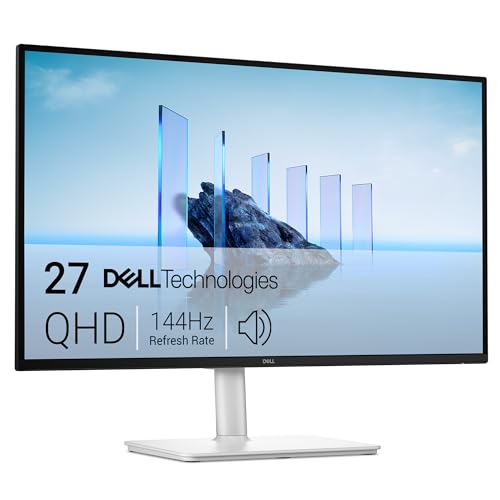
For a Mac mini on a desk, the Dell 27 Plus QHD USB-C (S2725DC) is the most flexible pick on this list, with a 2560×1440 panel, 144Hz, USB-C, HDMI, DisplayPort and a height-adjustable stand. If sharper text is the priority, the two 27-inch 4K Dell models are the step up. Not one of the ten titles mentions the Mac mini by name, so we compared them on resolution, ports and stand design, not on confirmed Apple compatibility.
Our short list
Our top picks





As an Amazon Associate we earn from qualifying purchases at no extra cost to you.
- Best all-rounder: Dell 27 Plus QHD USB-C (S2725DC).
- Sharpest text: Dell 27 S2725QC or S2725QS, both 4K at 163 PPI per the titles.
- QHD without USB-C: Dell 27 Plus QHD (S2725DSM).
- Cheapest full-size picks: Samsung 24 and 27 S30GD, Philips 241V8LB.
- Second screens: MNN and Anyuse 15.6-inch portables.
Comparison table
| Model | Key point from the title | Best for |
|---|---|---|
| Dell 27 Plus QHD S2725DSM | 2560×1440, 144Hz, HDMI/DP 1.4, height-adjustable | Everyday work with an HDMI connection |
| Samsung 27″ S30GD | IPS, 100Hz, tilt-only stand | Tight budgets |
| Philips 241V8LB 24″ | 1920×1080, 100Hz VA, HDMI 1.4 | Basic desk use |
| Dell 27 S2725QS | 4K IPS 120Hz, 99% sRGB, USB-C | Sharper text and photos |
| Dell 27 S2725QC | 4K 163 PPI, 120Hz, USB-C, 4ms | 4K with a similar spec sheet |
| Samsung 24″ S30GD | IPS, 100Hz, tilt-only stand | Small desks |
| Dell 24 SE2426H | 23.8″ FHD, 144Hz, IPS, 2x HDMI | Smaller FHD screen with dual inputs |
| Dell 27 Plus QHD USB-C S2725DC | QHD 144Hz, USB-C, HDMI, DP 1.4 | One-cable setups |
| MNN 15.6″ Portable | FHD 60Hz, USB-C, HDMI, smart case | Travel second screen |
| Anyuse 15.6″ Portable | FHD 60Hz IPS, USB-C, HDMI | Budget second screen |
Each monitor in detail
Dell 27 Plus QHD Monitor S2725DSM
The title lists a 27-inch 2560×1440 panel at 144Hz with 1ms response, two 3W speakers, HDMI and DisplayPort 1.4, plus height, tilt, pivot and swivel adjustment and AMD FreeSync. There is no USB-C input in the title, so you would use HDMI or DisplayPort. Ash White finish. The 144Hz figure is the panel’s capability; what a Mac mini can output depends on the model and port, so verify on Apple’s page. It is the better pick over the USB-C sibling if you only ever plan to connect one computer over HDMI.
- Pros: full stand adjustment; QHD at 27 inches; speakers built in.
- Cons: no USB-C listed; built-in speakers are modest at 3W each.
Who it’s for: desk workers who connect over HDMI.
Dell 27 Plus QHD USB-C Monitor S2725DC
This variant adds USB-C to the same QHD 144Hz panel and keeps HDMI, DisplayPort 1.4, 2x3W speakers and the full height, tilt, pivot and swivel stand. USB-C appears in the title, but the power delivery wattage does not, so check the listing if you plan to charge a laptop through it. Having HDMI, DisplayPort and USB-C on one panel means the Mac mini, a work laptop and a console could share it, which is the real argument for paying the extra over the S2725DSM.
- Pros: three video inputs; adjustable stand; QHD.
- Cons: cost is above the HDMI-only sibling; USB-C power details unknown.
Who it’s for: one-cable setups with a spare laptop.
Dell 27 Monitor S2725QS (4K UHD IPS)
The listing mentions 4K UHD, IPS, 120Hz, 5ms, FreeSync Premium, 350 cd/m2 brightness, 1,500:1 contrast, 99% sRGB, anti-glare coating, HDMI, DisplayPort, USB-C and a height-adjustable stand with swivel and pivot. It sits very close to the S2725QC, so compare both listings line by line. At 27 inches, a 4K panel gives you more room for side-by-side windows than QHD without needing larger text, though some people raise the on-screen scaling, which gives back some of that extra space.
- Pros: 4K; wide sRGB coverage per the title; adjustable stand.
- Cons: slower 5ms response figure than the sibling; more pixels to drive.
Who it’s for: anyone prioritizing text and photo sharpness.
Dell 27 Monitor S2725QC (4K UHD)
The title says 3840×2160, 163 PPI, 120Hz, 99% sRGB, 4ms, FreeSync Premium, USB-C, HDMI, DisplayPort, anti-glare, eye comfort technology and an edgelight design. It does not list stand adjustments, so check the listing. The pixel density figure is the point of the monitor. The shorter 4ms figure in the title, compared with the 5ms on the QS, is a small difference on paper that most office users will not feel, so choose on price and listed stand features.
- Pros: 163 PPI; USB-C; 4ms listed.
- Cons: stand details not in the title; very similar to the QS.
Who it’s for: buyers who want the sharpest text at 27 inches.
Samsung 27″ S30GD Essential Monitor
The listing says IPS panel, 100Hz, a tilt-only stand, advanced eye care and a game mode. It does not give resolution, so check the listing page before you assume anything. Tilt-only means no height adjustment, so you may want a stand or books to raise it. Samsung’s other listing below shares the same family name and feature list, which makes this the larger of two near-identical options.
- Pros: IPS; low cost for 27 inches; 100Hz.
- Cons: tilt-only stand; resolution not in the title.
Who it’s for: budget buyers who want a large screen.
Samsung 24″ S30GD Essential Monitor
The smaller sibling: a 24-inch IPS panel at 100Hz with tilt-only stand and the same eye care and game mode notes. At 24 inches it takes less desk space. As with the 27-inch version, resolution is not in the title. Check it on the listing, because a 24-inch panel at Full HD looks very different from one with more pixels.
- Pros: compact; IPS; low cost.
- Cons: tilt-only stand; resolution not stated.
Who it’s for: small desks and secondary screens.
Philips 24 Inch 241V8LB
The title lists 1920×1080, 100Hz, a VA panel, 4ms GtG, Adaptive Sync, HDMI 1.4, tilt adjust, flicker-free and low blue light features, and a four-year advance replacement warranty. The warranty term is the seller’s claim, so confirm it on the listing. VA panels often show deeper blacks but can lose some color accuracy at a slant, so sit centered in front of it.
- Pros: warranty claim; flicker-free; low cost.
- Cons: HDMI 1.4 only; Full HD on a 24-inch panel looks coarser than QHD or 4K.
Who it’s for: basic spreadsheets and browsing.
Dell 24 Monitor SE2426H
This is a 23.8-inch Full HD IPS monitor with 144Hz, 1ms, AMD FreeSync, TUV 3-Star certification, two HDMI inputs and a tilt stand. The dual HDMI inputs mean you can switch between two sources without swapping a cable. At 23.8 inches it is the most compact Full HD option with 144Hz in this list.
- Pros: two HDMI ports; 144Hz; IPS.
- Cons: tilt-only; no USB-C or DisplayPort in the title.
Who it’s for: a Mac mini plus a console on one screen.
MNN 15.6″ FHD Portable Monitor (a second-screen pick)
Not a desk monitor. The title lists 15.6-inch FHD IPS, 60Hz, HDR, USB-C one-cable connection, HDMI, a smart case and PC, Mac, phone and Switch compatibility. Listed here as a clearly labeled runner-up because it is a portable screen. A 15.6-inch panel is easy to pack, but it will feel cramped as your only display. Check whether power comes from the USB-C port alone, since a bus-powered screen can strain a small source.
- Pros: portable; USB-C and HDMI; case.
- Cons: small and 60Hz; “HDR” claim is just a label.
Who it’s for: a travel second screen.
Anyuse 15.6″ FHD IPS Portable Monitor (a second-screen pick)
The listing says 1080p, 60Hz, ultra-slim, USB-C and HDMI, for PC, Mac, phone and consoles. Another portable option that is listed here as a runner-up, since a 15.6-inch screen is a companion, not a main monitor. Confirm in the listing whether a stand or case is included, since the title does not say.
- Pros: slim; low cost; USB-C and HDMI.
- Cons: small; 60Hz; case not mentioned.
Who it’s for: a cheap extra screen.
How we picked these
We used the listing titles, published specifications, manufacturer documentation and typical buyer-review themes. Nobody on the team used or measured these units, so claims about sharpness, speakers or response times are the sellers’ own. No title confirms Mac mini compatibility, so we show the specs and leave the port check to you.
What to look for in a Mac mini monitor
Pixel density
Pixel density, in pixels per inch, is a better guide than resolution alone. Work it out as the diagonal pixel count divided by the diagonal size. A 27-inch 2560×1440 screen comes to about 109 PPI. A 27-inch 4K screen is about 163, matching the Dell titles. A 23.8-inch 1080p screen is about 93 and a 15.6-inch 1080p screen is about 141. Higher density generally means finer text, so the small portable screens can look crisper than a 24-inch Full HD monitor.
Ports and cables
Look at which ports your Mac mini has, then match them to the monitor’s inputs. HDMI and DisplayPort need the right cable and version. Dell lists USB-C on several models, but the titles do not give power delivery, so check the listing. Check your Mac mini’s supported outputs and refresh rates on Apple’s spec page.
Stand and desk fit
Tilt-only stands force you to adjust the screen height with a riser. Dell’s QHD and 4K 27-inch listings mention height, swivel and pivot adjustment. Compare your desk depth with the stand base size on the listing.
Refresh rate: do you need it?
144Hz and 120Hz help motion feel smoother, but office work does not require them. Treat refresh rate as a bonus unless you also play games. A worked example: if you spend most of the day in documents and browsers, a 100Hz Samsung and a 144Hz Dell will feel nearly the same, so the extra money is better spent on resolution or a better stand.
Mistakes buyers make
The most frequent is buying a 4K screen without checking the port and cable, or assuming the refresh rate is what the monitor lists. Others include picking a 27-inch Full HD screen and being surprised by the coarse text, and forgetting that tilt-only stands sit low. Buyers also overlook cable length, or assume HDR on a portable screen means anything special. Ask what you will actually do on the screen before you pay for features you will not use. If you are also deciding on the computer, our mini PC comparison shows what ports to expect.
Verdict
Choose the Dell S2725DC for a flexible QHD desk setup, a 4K Dell for sharpest text, the Samsung or Philips on a tight budget, and a portable screen only as a second display.
Related guides
- Wireless Chargers For Iphone And Airpods
- Black Friday And Cyber Monday Deals
- Mechanical Keyboard For Programming
Frequently asked questions
Is 4K worth it for a Mac mini?
For text-heavy work, usually yes, because a 27-inch 4K panel packs about 163 pixels per inch against roughly 109 for a 27-inch QHD screen, and sharper text is the clearest day-to-day gain. The catch is the port and cable you need to drive it, and a higher price. Check your exact Mac mini model’s supported display outputs on Apple’s spec page before buying.
Is a USB-C monitor required for a Mac mini?
Not necessarily. HDMI and DisplayPort listings also work if your Mac mini has a matching port and you have the right cable. USB-C helps when a single cable can carry video and power to other devices, but the titles here do not describe power delivery, so confirm that on the listing page if it matters to you.
Will a 144Hz monitor run at 144Hz on a Mac mini?
That depends on the Mac mini model, the port you use and the cable. Titles list 144Hz as the monitor’s capability, not what your computer will deliver. Check Apple’s specifications for your model and the monitor’s manual for which input supports the top refresh rate before assuming it.
Can a portable monitor serve as the main display?
It can work as a secondary or travel screen, but a 15.6-inch 1080p panel is a small main display for long desk sessions. The two portable listings here say 60Hz and Full HD. They suit a temporary second screen or a laptop companion more than a permanent desk setup.
Is the Samsung or Philips better for a budget Mac mini setup?
Both are basic 100Hz office-style screens. The Samsung listings say IPS and a tilt-only stand, while the Philips lists a VA panel, Full HD resolution and a four-year advance replacement warranty claim. IPS tends to hold color at angles; VA often has stronger contrast. Pick based on the listing’s details for size and warranty.