Key takeaways
- Best Overall: Logitech MK540 Advanced, for a full-size keyboard, palm rest, spill resistance and multi-year battery life.
- Best Slim and Multi-Device: Logitech MK955 Signature Slim, with Bluetooth or Logi Bolt receiver and three-device switching.
- Best Ergonomic: ProtoArc EKM01 Plus, a split-style rechargeable combo with a cushioned wrist rest.
- Best Budget Ergonomic: ULSOU wave-key dual-mode combo, with Bluetooth and 2.4 GHz.
- Best Quiet Budget: EDJO silent full-size combo for shared rooms.
- Best Split Layout: MEETION split curved combo with soft palm rest and dual wireless modes.
- Best for Style: SABLUTE backlit typewriter-style combo with a magnetic wrist rest and phone holder.
The best wireless keyboard and mouse for most home desks is the Logitech MK540 Advanced, a full-size combo with a number pad, palm rest and long battery life. The best slim, multi-device choice is the Logitech MK955 Signature Slim, and the best for wrist comfort is the ProtoArc EKM01 Plus ergonomic combo. This guide compares seven wireless keyboard and mouse sets by connection type, battery system, layout and comfort, so you can match a combo to the way you work.
We did not personally use these products. This guide is research-based, drawing on manufacturer spec sheets, listing details and independent reviews named at the end. Where a detail could not be confirmed, we write “not listed” instead of guessing. If you are building a full home office, pair this guide with our notes on choosing an ergonomic office keyboard, since a combo is only comfortable if the desk height and chair are right too.
Our top picks


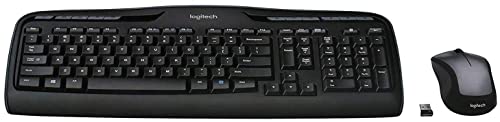
As an Amazon Associate we earn from qualifying purchases at no extra cost to you.
Top Picks at a Glance
- Best Overall: Logitech MK540 Advanced, for a full-size keyboard, palm rest, spill resistance and multi-year battery life.
- Best Slim and Multi-Device: Logitech MK955 Signature Slim, with Bluetooth or Logi Bolt receiver and three-device switching.
- Best Ergonomic: ProtoArc EKM01 Plus, a split-style rechargeable combo with a cushioned wrist rest.
- Best Budget Ergonomic: ULSOU wave-key dual-mode combo, with Bluetooth and 2.4 GHz.
- Best Quiet Budget: EDJO silent full-size combo for shared rooms.
- Best Split Layout: MEETION split curved combo with soft palm rest and dual wireless modes.
- Best for Style: SABLUTE backlit typewriter-style combo with a magnetic wrist rest and phone holder.
Quick Comparison Table
| Product | Best for | Key specs | Watch for | Price tier |
|---|---|---|---|---|
| Logitech MK540 Advanced | Everyday home office | Full-size, number pad, palm rest, USB receiver, 60 ml spill resistance | Limited macOS support | Mid-range |
| Logitech MK955 Signature Slim | Mac and Windows users | Bluetooth 5.1 or Logi Bolt, 3 devices, 400 to 4000 dpi mouse | Higher cost | Premium |
| ProtoArc EKM01 Plus | Wrist comfort | Split layout, rechargeable, 3 devices, wrist rest | Large footprint | Mid-range |
| ULSOU wave-key combo | Budget ergonomics | Bluetooth and 2.4 GHz, wrist rest, 3 DPI levels | Brand details thin | Budget |
| EDJO silent combo | Quiet rooms | Full-size, silent keys, 2.4 GHz | Battery details not listed | Budget |
| MEETION split curved combo | Natural typing posture | Split curved layout, 2.4 GHz and Bluetooth, palm rest | Needs adjustment period | Budget |
| SABLUTE typewriter combo | Looks and extras | Backlit round keys, magnetic wrist rest, 2.4 GHz | Round keys slow touch typists | Budget |
How to Choose Between Wireless Types
Almost every wireless keyboard and mouse combo uses one of two links. A 2.4 GHz USB receiver gives a stable connection that works the moment you plug it in, but it uses a USB port. Bluetooth uses no port and can pair with tablets and phones, but it can take a second longer to wake and needs a pairing step. Some combos, such as the MK955, ProtoArc EKM01 Plus, ULSOU and MEETION sets in this list, offer both, so you can use the receiver on a desktop and Bluetooth on a tablet.
Then look at the power system. Logitech’s MK540 uses replaceable AA batteries with long stated life; rechargeable sets like the ProtoArc charge over USB-C. Replaceable batteries never need a cable, while rechargeable ones add a charging routine but avoid battery waste.
Decision matrix by situation
| Your situation | Pick | Why |
|---|---|---|
| Home office, number-heavy work | Logitech MK540 Advanced | Full number pad and palm rest |
| Mixed Mac, iPad and Windows use | Logitech MK955 Signature Slim | Bluetooth and multi-OS, 3 devices |
| Wrist or forearm discomfort | ProtoArc EKM01 Plus | Split layout and cushioned rest |
| Small budget, wants curves | ULSOU wave-key combo | Wave keys and wrist rest at a low tier |
| Shared room, late-night work | EDJO silent combo | Silent keys and clicks |
| Wants a retro look | SABLUTE typewriter combo | Round backlit keys |
1. Logitech MK540 Advanced: Best Overall
- Full-size quiet keyboard with number pad and integrated palm rest
- Full-size ambidextrous mouse with soft rubber grips
- USB-A receiver with range up to 10 m (about 33 ft)
- Keyboard battery up to 3 years on 2 AA cells; mouse up to 18 months on 1 AA cell
- Spill-resistant keyboard rated to 60 ml per the maker
Best for: everyday work at a desk, including accounting and spreadsheets. Skip if: you use a Mac as your main computer, since macOS support is limited.
The MK540 does not try to be clever. The keys are low-noise, the number pad is where you expect it, and the palm rest supports your wrists during long typing sessions. A receiver that stores in the mouse or stays in a USB port gives a stable connection, and the multi-year battery life means you will almost forget it is wireless. Programmable shortcut keys help with common tasks.
The drawbacks are not about performance but flexibility. The 2.4 GHz receiver ties the combo to a single computer, there is no Bluetooth pairing for tablets, and macOS support is limited per reviewers. If your desk is a Windows or Chrome OS desk, those limits rarely matter.
Pros: long battery life; full-size layout; spill resistance; palm rest; reliable connection. Cons: no Bluetooth; limited Mac features; receiver uses a port.
2. Logitech MK955 Signature Slim: Best Slim Multi-Device Combo
- Slim keyboard designed for larger hands, with quiet keys
- Bluetooth 5.1 LE or Logi Bolt USB-A receiver
- Pairs with up to 3 devices; works across Windows, macOS, Chrome OS, Linux, iPadOS, iOS and Android
- Keyboard battery up to 3 years on 2 AAA cells; mouse up to 2 years on 1 AA cell
- Mouse sensor from 400 to 4000 dpi
Best for: people who switch between a laptop, a desktop and a tablet. Skip if: you want the lowest cost.
The MK955 is the set to pick if you work across devices. Press a key to switch between a laptop, an iPad and a desktop, and it keeps the same typing feel. The Signature series keyboards are slim and quiet, and the mouse is sized for larger hands according to the maker. Battery life figures are long, though third-party sites list slightly different numbers for the mouse, so trust the maker’s two-year claim as the official one.
At a premium tier, it costs more than the others, but it also avoids buying a second keyboard for your tablet. If you work from a single Windows desktop, the MK540 gives more key travel and a number pad for less.
Pros: multi-device; multi-OS; long battery life; quiet. Cons: premium tier; slim keys feel shallower; no built-in wrist rest.
3. ProtoArc EKM01 Plus: Best Ergonomic Combo
- Full-size curved split keyboard with memory-foam wrist rest and adjustable tilt legs
- Ergonomic mouse with 3 DPI levels (800, 1300, 2000 per the maker)
- 2.4 GHz receiver plus Bluetooth for up to 3 devices
- Rechargeable batteries (500 mAh each), up to about 100 hours per charge, USB-C charging
- Works with Windows, macOS and Android per the maker
Best for: users with wrist or forearm strain who want a gentle ergonomic shift. Skip if: your desk is small.
A split layout angles the left and right halves slightly, which reduces the inward bend of your wrists as you type. The wrist rest supports the heel of your hand, and the mouse shape keeps your forearm more neutral than a flat mouse. The rechargeable batteries mean you do not buy cells, but you do need a charging habit; with 100 hours per charge, that means a charge every few weeks with typical daily use.
Expect an adjustment period. The first days feel awkward for touch typists because the keys are shaped differently. The keyboard is also large, around 18.9 inches wide, so measure your desk before you buy. Nothing in an article can replace advice from a doctor or physical therapist if you have persistent pain.
Pros: ergonomic design; rechargeable; multi-device; cushioned wrist rest. Cons: bulky; learning period; batteries need charging.
4. ULSOU Wave-Key Dual-Mode Combo: Best Budget Ergonomic
- Wave-shaped keys with a soft foam wrist rest
- Bluetooth and 2.4 GHz dual-mode
- Silent typing per the listing
- 3-level adjustable DPI mouse; Windows and Mac OS support listed
Best for: shoppers who want wave-key comfort without a high price. Skip if: you need documented battery life.
The wave key design lowers the centre of the keyboard to give a gentle curve for your hands, similar in spirit to Logitech’s Wave Keys line. The listing highlights silent typing and dual-mode wireless, which is rare at the budget tier. Battery life and range are not listed in the title, so check the full listing for those numbers before buying.
Pros: wave keys; dual-mode; wrist rest; quiet. Cons: battery details not listed; lesser-known brand; plastic feel.
5. EDJO Silent Full-Size Combo: Best Quiet Budget Pick
- Full-size silent keyboard and optical mouse
- 2.4 GHz connection described as lag-free
- Long battery life claimed in the listing; specific hours not listed
- Works with Windows, Mac and laptops per the listing
Best for: shared rooms, offices and late-night work. Skip if: you want Bluetooth.
The word to focus on is silent. The keyboard keys and mouse buttons are designed to be quiet, which helps if you work next to a sleeping partner or a roommate. As with most budget sets, the build is plastic and you should not expect an adjustable wrist rest or backlighting.
Pros: quiet; full-size; simple setup. Cons: no Bluetooth; battery hours not listed; basic build.
6. MEETION Split Curved Combo: Best Split Layout on a Budget
- Split curved keyboard with soft palm rest and full-size layout
- 2.4 GHz and Bluetooth dual wireless modes
- Adjustable-DPI mouse
- Battery system: not listed in the title
Best for: people who want a split layout but do not want to pay for the ProtoArc. Skip if: you prefer flat boards.
This set brings a curved, split-style layout to a lower tier. It offers two wireless modes and a soft palm rest. The compromise is documentation: the title is light on battery, range and software details, and the brand has fewer independent reviews than Logitech. If you try it, give yourself a week of adjustment before judging comfort.
Pros: split layout; dual modes; palm rest. Cons: sparse specs; learning curve; plastic build.
7. SABLUTE Typewriter-Style Combo: Best for Style
- Backlit round keycaps in a typewriter style
- Magnetic wrist rest and phone holder
- Lighting mouse; 2.4 GHz cordless connection
- Compatible with Mac, Windows, PC and laptops per the listing
Best for: someone who wants a retro desk look. Skip if: you type fast and rely on flat keycaps.
Round keycaps look distinctive and are fun, but they can slow touch typists because your fingertips do not rest as naturally between keys. The magnetic wrist rest and phone holder are practical extras. It is a style choice more than a productivity choice, so choose it if the look matters.
Pros: distinctive look; backlight; wrist rest and phone holder. Cons: round keys; no Bluetooth listed; battery details not listed.
Also Consider
- seenda Bluetooth ergonomic combo: full-size layout with wrist rest, number pad and USB or Bluetooth multi-device switching; a budget alternative to the ProtoArc.
- X9 Performance ergonomic split combo: a split keyboard with wrist rest and mouse using 2.4 GHz and Bluetooth; popular with people who want a split design.
- RECCAZR silent curved combo: a quiet curved set aimed at office use.
Setting Up a Wireless Combo Without Problems
- Plug the receiver into a port close to the keyboard; a short USB extension cable stops the signal from being blocked by the desk or PC case.
- Avoid placing the receiver next to a USB 3.0 hard drive or a Wi-Fi router, which can cause interference.
- Pair Bluetooth sets one at a time and name each device to avoid confusion.
- Switch off the mouse when you travel; an accidental scroll wheel press can wake and drain it.
- Replace both keyboard and mouse batteries together if you run replaceable cells.
Desk Space and Posture: A Worked Example
A combo is only as comfortable as the desk it sits on. Take a typical home desk that is 120 cm wide and 60 cm deep. A full-size keyboard such as the MK540 is roughly 44 cm wide, and the ProtoArc EKM01 Plus is about 48 cm wide (18.9 inches). Add a mouse zone of at least 20 cm to the right, and the keyboard and mouse together take 64 to 68 cm of the width. That leaves around 50 cm for a monitor stand, a lamp and a notebook. On a 100 cm desk, the same layout leaves less than 40 cm, which is why people with narrow desks often move to a tenkeyless or slim keyboard.
Depth matters too. You want about 15 cm in front of the keyboard for your wrists if the set has no wrist rest, or about 5 cm if the rest is built in. A monitor should sit at least 50 cm from your eyes, so a 60 cm deep desk with a keyboard on it leaves a narrow margin; slide the monitor back or use a keyboard tray if your desk is shallower.
For posture, aim to keep your elbows near 90 degrees, forearms roughly level with the desk and wrists straight rather than bent up or down. A standard desk height of about 72 to 76 cm suits many adults. If you are shorter, a footrest and a chair height adjustment make more difference than any keyboard. If you use a split layout like the ProtoArc or MEETION, the angle between halves is small, so the main benefit is a more natural wrist position, not a cure for discomfort.
Cable and Receiver Planning
Wireless does not mean no cables. Plan for three cable items: a USB extension for the receiver, a USB-C charging cable if your set is rechargeable, and a power strip with a free outlet. A short extension cable, even 30 to 50 cm, lets you place the receiver on the desk surface instead of behind a PC case, which can improve signal quality. Clip the cable to the desk edge so it does not drag the receiver off.
If you use a laptop on a stand, check that the ports are not blocked by the stand, and consider a compact USB hub so the keyboard receiver, a headset dongle and a webcam do not compete for the same port. Bluetooth sets avoid this problem entirely, which is a point in favour of the MK955 and ProtoArc.
How We Chose
We shortlisted wireless keyboard and mouse combos that are currently sold and that cover distinct needs: a standard office combo, a premium multi-device combo, ergonomic and split sets, a silent set and a style set. We compared connection type, battery system, layout and listed features using manufacturer pages, retailer listings and independent reviews. We did not personally use these products. Where listings disagree we followed the manufacturer’s spec sheet and mention it. We limited each brand to two main picks.
Buying Guide
Connection: 2.4 GHz receiver, Bluetooth or both
A receiver is plug-and-play and tends to be the most stable for desktops, but it takes a USB port. Bluetooth is better for tablets and laptops with few ports, and multi-device sets can switch between computers with a key press. If you use a desktop with limited ports, choose a combo whose receiver can be shared by keyboard and mouse, as all the sets here do.
Battery: replaceable or rechargeable
Logitech’s mid-range combos use replaceable AA or AAA batteries, with stated life measured in months or years. Rechargeable sets such as the ProtoArc give about 100 hours per charge and use USB-C. Think about whether you prefer to swap batteries a couple of times a year or charge every few weeks.
Layout: full-size, slim, split and wave
Full-size layouts include a number pad and suit data entry. Slim layouts have shallower keys and look neat. Split and wave layouts angle or curve the keys to reduce wrist bending. If you type all day, try a curved layout for a week and see whether the discomfort changes; if it does not, consider a different desk height or chair position.
Mouse size and DPI
A mouse should fit your hand, with your fingers resting on the buttons and your palm supported. DPI controls pointer speed; 800 to 1600 is comfortable for most office work, and higher settings suit large or multiple monitors. Adjustable DPI, like the three levels on the ProtoArc, is handy.
Compatibility: Windows, Mac, Chrome OS and tablets
Check operating system support. Logitech’s MK540 is built mainly for Windows and Chrome OS. The MK955 lists wide support. Budget sets generally list Windows and Mac; check the details if you use Linux or a tablet.
Common Mistakes to Avoid
- Buying a full-size set for a small desk where the mouse has no room.
- Ignoring operating system support, then finding shortcut keys do not work on a Mac.
- Choosing by backlight and style instead of key feel.
- Forgetting spare batteries or a charging cable.
- Expecting an ergonomic keyboard to fix pain without adjusting desk height and posture.
Frequently Asked Questions
What is the best wireless keyboard and mouse combo?
The Logitech MK540 Advanced is the best all-round pick for a Windows desk, and the Logitech MK955 Signature Slim is the best for multi-device work.
Bluetooth or 2.4 GHz: which is better?
2.4 GHz receivers are plug-and-play and stable on desktops; Bluetooth is better when you want to use the same keyboard on a laptop and tablet. Sets with both give you the choice.
How long do wireless keyboard and mouse batteries last?
It depends on the product. Logitech lists up to 3 years for the MK540 keyboard and up to 18 months for the mouse, while rechargeable sets like the ProtoArc EKM01 Plus last about 100 hours per charge according to the maker.
Are wireless keyboards laggy for work?
For office tasks, a good 2.4 GHz or Bluetooth connection is not noticeably slower than a cable. Competitive gamers usually still prefer wired boards.
Are ergonomic combos worth it?
They can make typing more comfortable for some people, but results vary. If you have pain, speak to a doctor or physical therapist and adjust your desk setup as well.
Do wireless combos work with a Mac?
The MK955, ProtoArc and several budget sets list Mac support. The MK540 has limited macOS support, so check before you buy.
Can I use one receiver for both keyboard and mouse?
Yes, with the combo sets here the keyboard and mouse share one receiver, so you need only a single USB port.
How far can a wireless keyboard be from the computer?
Most 2.4 GHz and Bluetooth sets list a working range of about 10 m (33 ft) in open space. Walls, metal desks and other devices shorten that, so keep the receiver within a few metres and in line of sight for the most reliable link.
Can I use a wireless combo on a TV or media PC?
Yes, as long as the TV box or PC supports USB receivers or Bluetooth keyboards. A slim set like the MK955 suits a sofa setup better than a full-size set because it is lighter and thinner, but check that the device lists keyboard support first.
Which One Should You Buy?
Choose the Logitech MK540 Advanced for a dependable Windows desk. Choose the Logitech MK955 Signature Slim for cross-device work. Choose the ProtoArc EKM01 Plus for wrist comfort, and the ULSOU or MEETION sets if you want a curved layout on a smaller budget. Choose the EDJO combo for a quiet room and the SABLUTE set only if the retro look is the main goal.
Sources
- Logitech product pages (MK540 Advanced, MK955 Signature Slim)
- ProtoArc EKM01 Plus product page
- Retailer listing details for ULSOU, EDJO, MEETION and SABLUTE
- Independent reviews from PCWorld and other peripheral publications
Last updated: October 2026