Key takeaways
- Budget tier: VIVO, HUANUO, WALI and similar. Good for 24 to 27 inch screens, but check the weight window and expect plain finish.
- Mid-range tier: Fully Jarvis, Mountup and the Ergotron entry models. Better smoothness, more reliable hold and better support.
- Premium tier: Ergotron HX, Humanscale and similar. Designed for heavy ultrawides and long-term use.
For a gaming setup, pick a gas-spring monitor arm from a known brand such as Ergotron (LX for most single screens, HX for heavy ultrawides) if you want smooth, durable adjustment, a mid-range arm from brands like VIVO or HUANUO for ordinary 24 to 32 inch displays, and a dual or triple arm only after checking that your desk and monitors can support it. A good arm frees desk space, lets you set the screen at the right height and distance, and makes cable management easier. What matters most is that the arm’s stated weight range, VESA pattern and desk clamp type match your monitor and desk. This guide explains those checks and compares common choices.
Our top picks


As an Amazon Associate we earn from qualifying purchases at no extra cost to you.
At a Glance
| Option | Best for | Stated traits | Limits |
|---|---|---|---|
| Ergotron LX Desk Monitor Arm | Single 24 to 34 inch monitors | Gas-spring motion, VESA 75 and 100, clamp or grommet mount, long warranty from the maker | Premium tier, not for the heaviest ultrawides |
| Ergotron HX Desk Monitor Arm | Large or heavy ultrawide monitors | Higher weight capacity, large monitor support listed by the maker | Premium tier, bulkier |
| Humanscale M2.1 | Design-focused offices | Counterbalanced motion, clean look, dual and single versions | Premium tier, check capacity |
| Fully Jarvis / Mountup monitor arms | Mid-range buyers who want brand support | Gas spring designs, several widths, clamp and grommet mounts | Capacity varies per model |
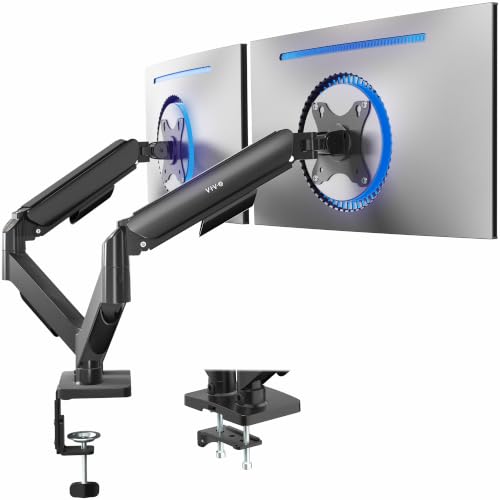
| VIVO, HUANUO, WALI and similar dual arms | Budget dual-monitor desks | Gas spring or spring arms, VESA 75 and 100, USB passthrough on some | Smoothness and long-term hold vary; check weight limits |
| Wall-mounted or fixed arms | Static, very stable screens | Simple, strong, few moving parts | Less flexible and requires wall mounting |
What to Check Before Buying
Monitor weight and size
Every arm lists a minimum and maximum monitor weight and screen size. Gaming monitors, especially curved ultrawide models, can be heavier than office panels. Gas-spring arms work within a weight window; if your monitor is too light, the arm may drift upward, and if it is too heavy, it will sag. Look up your monitor’s weight without the stand in the maker spec sheet and compare it with the arm’s range.
VESA mount pattern
Most arms fit the VESA 75×75 and 100×100 patterns. Some monitors, such as curved ultrawides or models with recessed backs, need extra clearance or an adapter. If the monitor has no VESA holes, an adapter kit may be available, but check that it is rated for the monitor’s weight.
Curved and ultrawide monitors
A curved panel can push the VESA mounting plate away from the arm and make a standard bracket fit poorly. Several makers publish a list of tested monitors or offer arms designed for large curved screens. If you own a 34 inch or larger ultrawide, favour an arm explicitly listed for that size.
Desk thickness and clamp type
Most arms offer a C-clamp and a grommet mount. The maker lists a maximum desk thickness; glass tops, desks with a lip or a back panel and very thin desks can cause trouble. A desk with a hollow core or thin particleboard may need a reinforcement plate. If the clamp crushes the desk, the arm will not hold properly.
Range of motion and smoothness
Gaming monitors are moved less often than office displays, but you still want tilt, swivel, rotation and height adjustment. Gas-spring arms let you move the screen with one hand and hold the position. Spring-based or fixed-tension designs may need a tension adjustment and can feel stiffer.
Cable management
Look for built-in clips along the arm. A gaming rig often has a DisplayPort cable and a power lead per monitor, and leaving them loose can strain the connector when you move the screen.
USB passthrough and extras
Some mid-range arms include USB ports on the base, but they are not essential. More important is that the arm allows enough height range to fit your seating position and standing desk if you have one.
Single, Dual or Triple Setup
A single arm is simple and puts all the weight on one clamp. A dual arm holds two screens side by side or stacked, and the maker lists a per-screen weight limit. Triple arms and heavy ultrawides put significant torque on the desk edge, so use a reinforced desk and follow the manual. If you want a flexible layout, two single arms often offer more freedom than a dual arm, because each can be positioned separately on the desk.
Budget Tiers
- Budget tier: VIVO, HUANUO, WALI and similar. Good for 24 to 27 inch screens, but check the weight window and expect plain finish.
- Mid-range tier: Fully Jarvis, Mountup and the Ergotron entry models. Better smoothness, more reliable hold and better support.
- Premium tier: Ergotron HX, Humanscale and similar. Designed for heavy ultrawides and long-term use.
Pick X If… Decision Table
| If you… | Pick |
|---|---|
| Own one 27 inch gaming monitor | Ergotron LX or a mid-range gas-spring single arm |
| Own a heavy 34 to 49 inch ultrawide | Ergotron HX or an arm explicitly rated for large curved screens |
| Use two matching monitors on a budget | Dual arm from VIVO, HUANUO or WALI, after checking weights |
| Want a design that blends into the desk | Humanscale M2.1 |
| Have a glass or thin desk | Grommet or reinforcement plate version, or a desk stand instead |
| Want a rock-solid fixed position | Wall mount or fixed arm |
Installation and Safety Notes
Install the arm on a desk that can bear the load. Tighten the clamp evenly and confirm there is no wobble before you hang the monitor. Mount the screen while the arm is low, then adjust the tension by following the maker steps. Do not exceed the stated weight range, and remove the monitor before moving the desk. Keep fingers clear of the joints, and recheck the screws after a few weeks because they may settle. If the arm drifts, adjust the tension; if it still drifts, the monitor may be outside the supported weight range.
Alternatives
- Monitor stand with riser: cheaper and easier for a single screen, but takes desk space.
- Wall mounts: good for a stable fixed screen on a gaming wall or in a small room.
- Desk with built-in monitor rail: some desks offer integrated mounts that avoid clamps.
- Floor stands: useful for TV-sized monitors and for desks that cannot take a clamp.
Ergonomic Setup Tips
Place the top edge of the monitor at or just below eye level, with the screen roughly an arm’s length away, and tilt it slightly back. For a dual-monitor setup, put the main screen directly in front of you and angle the second so you do not twist your neck. Gamers who use a single ultrawide often benefit from pulling the arm closer so the edges are easier to see. Use the arm’s range of motion to push the screen away when you are not playing and free up the desk for other tasks. If you use a standing desk, confirm that the arm’s height range and cable lengths work at both positions, and leave cable slack so connectors are not pulled. Take regular breaks from the screen, and if you notice eye strain or neck pain that does not ease with adjustment, consult a clinician.
Finally, think about the weight of accessories. Some owners attach webcams, light bars or small speakers to the monitor, which adds load that the arm must carry. Count those items when you check the weight limit. Also consider the depth of your desk: an arm with a long reach lets a deep ultrawide sit further back, while a shallow desk may leave the arm fully extended and put more leverage on the clamp. Follow the maker’s torque guidance, and re-check the clamp after the first week of use.
If you stream or record, a monitor arm also helps position a screen out of camera view or lets you swing a second display aside. Arms with a wide swivel range make it easy to share the screen with someone sitting next to you, which is handy for co-op play and for showing a friend a build or a setting.
Frequently Asked Questions
Will a monitor arm fit my curved ultrawide?
Many do, but check the arm’s weight and size rating and the VESA clearance. Curved panels sometimes need an arm or adapter explicitly listed for large curved displays.
How do I know what weight my arm needs?
Look at the monitor weight without its stand in the maker spec sheet, then compare it with the arm’s stated minimum and maximum. Stay inside the window to prevent drifting or sagging.
Can I mount an arm on a glass desk?
Often not safely with a normal clamp. Use an arm whose maker lists glass desk support with a reinforcement plate, or choose a stand instead. Follow the manual.
Are cheap monitor arms good enough?
For lighter 24 to 27 inch screens, reviewers often find budget arms acceptable. For heavy ultrawides or daily repositioning, a mid-range or premium model tends to hold position better and last longer.
Does a monitor arm improve gaming performance?
No, it does not change frame rate or response time. It improves ergonomics and desk space, which can make long sessions more comfortable.
Is a dual arm better than two single arms?
A dual arm uses one clamp and one pole, which saves space. Two single arms give more flexibility in placement but use two clamp points, so choose based on your desk layout.