Key takeaways
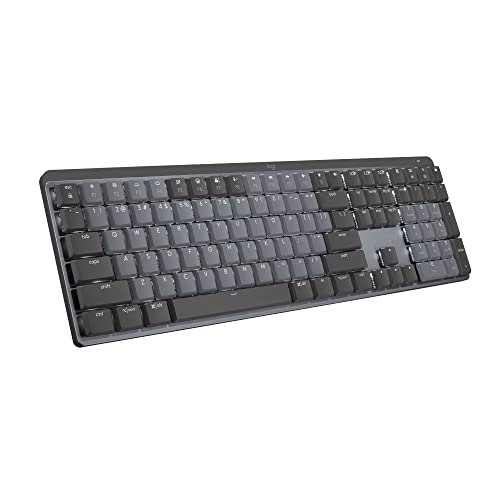
- Best Overall: Logitech MX Keys Mini, a compact, illuminated, rechargeable Bluetooth board.
- Best for Travel: Logitech Pebble Keys 2 K380s, a slim board that pairs with three devices.
- Best Design: Microsoft Designer Compact Keyboard, a standalone Bluetooth board in matte black.
- Best Budget Wireless: HP 230 Wireless Keyboard, a low-profile, quiet board for Windows and Mac.
- Best Budget Wired: HP 150 Wired Keyboard, full-size with a numeric keypad.
- Best Ergonomic Wired: Kensington Pro Fit Ergonomic Wired Keyboard with a built-in wrist cushion.
- Best Split Layout: Perixx PERIBOARD-512B, a wired split keyboard with a wrist rest.
The best external keyboard for a laptop is the Logitech MX Keys Mini if you want a compact, rechargeable board that feels close to a premium laptop keyboard, and the HP 150 Wired Keyboard if you simply want a reliable plug-in board at a very low price. Between those two sit a travel-friendly Bluetooth option, a stylish compact board, a cheap wireless set and two ergonomic choices for people who type all day. This guide ranks seven picks, explains the numbers that matter when you pair a keyboard with a laptop, and flags the mistakes that make an external keyboard more annoying than the built-in one.
This guide is research-based. We did not personally use these products. We compared maker listings, specification pages and independent reviews, and where a spec was not listed we wrote “not listed” rather than guessing. Prices are shown as tiers only.
Our top picks



As an Amazon Associate we earn from qualifying purchases at no extra cost to you.
Top Picks at a Glance
- Best Overall: Logitech MX Keys Mini, a compact, illuminated, rechargeable Bluetooth board.
- Best for Travel: Logitech Pebble Keys 2 K380s, a slim board that pairs with three devices.
- Best Design: Microsoft Designer Compact Keyboard, a standalone Bluetooth board in matte black.
- Best Budget Wireless: HP 230 Wireless Keyboard, a low-profile, quiet board for Windows and Mac.
- Best Budget Wired: HP 150 Wired Keyboard, full-size with a numeric keypad.
- Best Ergonomic Wired: Kensington Pro Fit Ergonomic Wired Keyboard with a built-in wrist cushion.
- Best Split Layout: Perixx PERIBOARD-512B, a wired split keyboard with a wrist rest.
Quick Comparison Table
| Product | Best for | Key specs (as listed) | Watch for | Price tier |
|---|---|---|---|---|
| Logitech MX Keys Mini | Compact premium typing | Minimalist, wireless, illuminated, USB-C rechargeable, 3 devices | No number pad | Premium |
| Logitech Pebble Keys 2 K380s | Travel and tablets | Slim, compact, Bluetooth, multi-device | Flat, short-travel keys | Budget |
| Microsoft Designer Compact | Clean look, Windows laptops | Standalone wireless Bluetooth, matte black | Battery type not listed here | Mid-range |
| HP 230 Wireless | Low-cost wireless | Low-profile, quiet design, Windows and Mac OS | Receiver needs a free port | Budget |
| HP 150 Wired | Office use, plug and play | Full-size, numeric keypad, silent-touch chiclet keys | Cable length not listed | Budget |
| Kensington Pro Fit Ergonomic | All-day typing with a cushion | Wired, built-in wrist cushion, adjustable reverse tilt, low noise | Large footprint | Mid-range |
| Perixx PERIBOARD-512B | Neutral wrist position | Wired, split layout, wrist rest, natural typing | Learning curve | Mid-range |
1. Logitech MX Keys Mini: Best Overall
- Minimalist wireless illuminated keyboard (as listed).
- USB-C rechargeable.
- Pairs with 3 devices via Bluetooth, per the listing.
- Compact layout without a number pad.
Best for: laptop users who want a small, comfortable, quiet board that works with Windows, Mac, Linux, iPadOS and Android. Skip if: you enter numbers all day or you are on a tight budget.
A good external keyboard for a laptop has to do three things well: it must not take over the desk, it must switch devices easily, and it must feel better than the laptop keyboard. The MX Keys Mini is built around those goals. The compact layout leaves more room for a mouse, which matters if your desk is shallow, and the rounded keys are shaped to guide your fingertips. The backlight can adjust to ambient light according to the maker, which helps in dim rooms.
Multi-device pairing is useful for laptop users who also use a tablet or a phone. You press a key to jump from one device to another. USB-C charging means you can use the same cable that charges your laptop. The trade-off is that the board costs more than basic options, and the layout drops the number pad, so spreadsheet users may want to add a separate keypad.
The key travel is shallow compared with a desktop board, yet it feels firmer than many laptop keyboards. If you like deeper keys, a mechanical board would suit better. For most people who write, code lightly or manage email, this is a very comfortable middle ground.
Pros: compact; illuminated; multi-device; rechargeable. Cons: no number pad; premium tier; shallow travel for fans of deep keys.
2. Logitech Pebble Keys 2 K380s: Best for Travel
- Slim, portable, compact Bluetooth keyboard (as listed).
- Connects to multiple devices.
- Tonal graphite in this listing.
- Quiet keys.
Best for: carrying in a laptop bag and using at cafes or in a hot-desking office. Skip if: you want a number pad or a premium feel.
The K380s is lighter and smaller than a full-size board. It slides into most laptop bags, and the quiet keys are polite in shared spaces. It is a good pairing with a travel laptop because it gives you a better typing angle than the built-in keyboard when you place the laptop on a stand. Its limit is size: the keys are small and flat, and the board slides on slick desks unless it has rubber feet.
Because it is Bluetooth only, you do not need a free USB port. That is a real advantage on thin laptops with only one or two USB-C ports. Pairing takes seconds through the system Bluetooth menu, and the Easy-Switch keys move between devices.
Pros: small; quiet; no receiver needed; budget tier. Cons: no number pad; short travel; battery details not shown in the short title.
3. Microsoft Designer Compact Keyboard: Best Design
- Standalone wireless Bluetooth keyboard in matte black (as listed).
- Compact design.
- Compatible with Bluetooth-enabled devices, per the listing.
Best for: Windows laptop users who want a clean-looking board with dedicated shortcut keys that match Windows. Skip if: you need a backlight or a number pad (not listed).
The Designer Compact is a slim, slightly retro-styled board that keeps a conventional layout in a smaller body. For a Windows laptop, a keyboard built by the same company as the operating system tends to have well-matched function keys, such as emoji or screen snip shortcuts, though the exact set depends on the model, so check the listing images. It pairs through Bluetooth without a dongle.
The compromise is that the board is less featureful than the Logitech MX Keys Mini. Battery type and life are not listed in the short title. If you want a backlight or rechargeable battery, look at the MX Keys Mini instead.
Pros: clean look; slim; Bluetooth; Windows-friendly shortcut keys. Cons: fewer features; battery details not listed; no number pad.
4. HP 230 Wireless Keyboard: Best Budget Wireless
- Wireless connection, low-profile quiet design (as listed).
- Works with Windows and Mac OS.
- Laptop and PC compatible.
Best for: students and home users who want a cheap wireless board. Skip if: you only have a free USB-C port and no adapter; it uses a USB receiver, per the usual design of this model, so check the listing.
Low-profile keys reduce the learning curve for laptop users because the key height is closer to what they are used to. The quiet design suits shared rooms. The wireless connection removes cable clutter, which is helpful when the laptop sits on a stand and the keyboard sits in front of it.
What you give up at this tier is multi-device switching and a rechargeable battery. It is a single-device board, and you will need to replace batteries now and then. For a laptop that stays on one desk, that is perfectly fine.
Pros: low cost; quiet; low-profile keys; works with Windows and Mac. Cons: single device; batteries; receiver port required.
5. HP 150 Wired Keyboard: Best Budget Wired
- Full-size keyboard with numeric keypad (as listed).
- Silent-touch chiclet keys.
- Plug-and-play USB connection.
Best for: office desks and home workstations where the laptop is docked. Skip if: you move between rooms or want a thin travel board.
A wired keyboard never runs out of battery and never disconnects. For a laptop in a docking arrangement, with a monitor and a mouse on the desk, it is the simplest answer. The number pad is the main reason to choose a full-size board: if you handle numbers, a full-size external keyboard is much faster than the laptop’s number row.
The silent-touch key design is meant to reduce typing noise. If your laptop has only USB-C ports, you will need an adapter, so factor that into your budget. Cable length is not listed, so measure the distance between the laptop and your typing position.
Pros: low cost; no battery; number pad; simple. Cons: cable clutter; adapter may be required; basic feel.
6. Kensington Pro Fit Ergonomic Wired Keyboard: Best Ergonomic Wired
- Wired full-size keyboard (K75400US).
- Built-in wrist cushion.
- Adjustable reverse tilt.
- Low-noise keys.
Best for: people who type for several hours a day and want better wrist support. Skip if: you have a small desk.
Ergonomic keyboards help most when you adopt them with a good setup. A laptop’s built-in keyboard forces your hands to sit in front of the screen, so either your screen is too low or your arms are too high. Raising the laptop on a stand and adding an external keyboard lets you put the screen at eye level and keep your elbows near 90 degrees. The Pro Fit’s wrist cushion and reverse tilt are designed to help keep wrists straighter, though the maker does not make medical claims, and neither do we; if you have pain, talk to a doctor or an occupational therapist.
The board has a larger footprint than compact options. Measure your desk and leave room for the mouse. If you plug into a USB-C only laptop, you will need an adapter.
Pros: wrist cushion; reverse tilt; low noise; wired reliability. Cons: large; wired; not for travel.
7. Perixx PERIBOARD-512B: Best Split Layout
- Wired ergonomic split keyboard (as listed).
- Wrist rest and natural typing design.
- USB connection.
Best for: typists who want a neutral wrist position and are ready to spend a week adjusting. Skip if: you share your keyboard with others or switch layouts often.
A split layout angles each half of the keyboard to reduce the inward bend of the wrists. Many people find the shape strange at first and take a few days to a week to be comfortable. Typing speed often dips before it recovers. The wrist rest supports the heel of the hands while resting, not while typing, which is a common mistake.
It is a wired board, so there is no battery to worry about. It is not meant for travel. For a laptop on a permanent desk setup, it pairs with a laptop stand and an external mouse to build a more comfortable workstation.
Pros: split design; wrist rest; wired reliability; mid-range tier. Cons: learning curve; large; not portable.
Also Consider
- Logitech Wave Keys: an ergonomic wireless board with a palm rest and a gentle curve, aimed at people who want ergonomics without a split layout.
- Macally Compact Wireless Keyboard: a small 2.4GHz keyboard for laptops, Chromebooks and notebooks at a budget tier.
- TechGarden Wired Number Pad: if you like your laptop’s keyboard but need a number pad, a separate 19-key USB pad is a cheap add-on.
Which Connection Fits Your Laptop?
| Laptop type | Ports | Best connection | Matching pick |
|---|---|---|---|
| Thin ultrabook with 1 to 2 USB-C ports | USB-C only | Bluetooth | MX Keys Mini, K380s, Designer Compact |
| Mainstream Windows laptop with USB-A | USB-A and USB-C | Receiver or wired | HP 230, HP 150 |
| Docked laptop on a desk | Dock with USB-A | Wired | HP 150, Kensington Pro Fit |
| Laptop used while travelling | Limited | Bluetooth | K380s |
| Long daily typing | Any | Wired ergonomic | Kensington, Perixx |
Worked Example: Setting Up a 15.6 Inch Laptop With an External Keyboard
A typical 15.6 inch laptop is about 14 inches wide, 9.5 inches deep and 0.7 to 0.9 inches thick. Placed flat on a desk, the top of the screen sits roughly 11 to 12 inches above the surface, which is well below eye level for most seated adults, whose eyes sit about 18 to 22 inches above a standard 29 to 30 inch desk. That gap is the reason people get neck strain on a laptop.
- Raise the laptop. Use a stand or a stack of sturdy books to lift the screen so the top edge is near eye level. That usually means raising the laptop base 5 to 8 inches.
- Place the keyboard. Put it directly in front of you, about 2 to 4 inches from the desk edge, so your forearms stay roughly level and your elbows sit near your sides.
- Position the mouse. With a compact board such as the MX Keys Mini, the mouse can sit within a hand’s reach of the keyboard, which reduces shoulder reach. With a full-size board, the mouse sits about 4 to 5 inches further out.
- Leave room for the laptop screen distance. Keep the screen about an arm’s length away, around 20 to 26 inches.
- Cable or pairing check. If the board is wired, route the cable so it does not pull the board off the desk. If wireless, pair it and check the battery level indicator.
This setup adds a keyboard and a stand to your costs, but it turns a laptop into a workstation that is more comfortable for long sessions. For short sessions, the laptop’s own keyboard remains fine, and a travel board like the K380s is enough.
Keyboard Feel and Ownership Realities
Two things wear out first on a keyboard that lives next to a laptop: the legends on frequently used keys, and the battery. Printed legends on cheap boards can fade after a couple of years of daily use, while laser-etched or double-shot legends last longer, though the listings here do not state the legend method. Batteries are the second issue. A board that uses replaceable batteries is easy to keep running, while a rechargeable board is only as long-lived as its battery, and replacing a sealed cell is rarely practical.
Cleaning is simple. Unplug or turn the board off, turn it upside down and tap out crumbs, then wipe the keys with a cloth that is barely damp. Avoid soaking a wireless board, and keep drinks away from the desk edge. Chiclet boards such as the HP models are easier to wipe than boards with deep gaps between the keys. If you carry a keyboard in a bag, a thin sleeve prevents scratches on the keys and keeps small objects from pressing the keys and draining the battery.
Finally, remember that a keyboard feels different after a week than on day one. Give any new board seven to ten days before deciding whether the spacing and travel suit you, and check the retailer’s return window so you have that time.
How We Chose
We shortlisted keyboards from the site’s product store that are sold now and compared maker listings for connection type, layout, size, noise level, battery and ergonomic features. We cross-checked general guidance on typing posture from sources such as the Occupational Safety and Health Administration (OSHA) workstation guidance and independent reviews at Wirecutter and RTINGS. We limited each brand to two main picks. We did not personally use these products and we do not claim lab measurements. If a feature was not stated, we say “not listed”.
Buying Guide
Wired or wireless
Wired boards never need charging and have no pairing steps, but they add a cable and may need a USB-C adapter. Bluetooth boards need no port and can pair to more than one device, but they need a battery. 2.4GHz receiver boards are reliable but occupy a port. For a thin laptop with two ports, Bluetooth saves one for charging.
Layout size
A full-size keyboard is around 17 to 18 inches wide, a tenkeyless board is around 14 inches, and a compact board like the MX Keys Mini is around 12 inches. If you type numbers all day, choose a full-size board with a number pad. If you mostly write and browse, a compact layout gives you more room for the mouse and keeps your arms closer together.
Key feel and noise
Laptop keys usually have around 1 to 1.5 mm of travel. Compact boards often match that, while full-size membrane boards have around 3 to 4 mm. Choose shallow travel if you are used to a laptop, and a deeper feel if you want a change. For shared rooms, look for quiet or silent-touch keys.
Ergonomics
An external keyboard is most useful when paired with a laptop stand that lifts the screen so the top edge is at or slightly below eye level. Keep your elbows close to 90 degrees, wrists neutral and shoulders relaxed. If you feel numbness or pain, take breaks and talk to a health professional; no keyboard is a treatment.
Battery and charging
Rechargeable USB-C boards are convenient because you can use your laptop charger. Boards that use AAA or coin cell batteries often last months, but they need replacements. When the battery life is not listed, treat it as unknown.
Common Mistakes
- Buying a USB-A wired keyboard for a laptop that has only USB-C ports.
- Using the external keyboard with the laptop flat on the desk, so the screen is too low.
- Choosing a compact board when you need a number pad.
- Resting wrists on the wrist rest while typing instead of while pausing.
- Forgetting that a single-device wireless board must be re-paired when you switch.
Frequently Asked Questions
What is the best external keyboard for a laptop?
The Logitech MX Keys Mini is the best overall because it is compact, rechargeable and works with several devices. For a basic wired option, the HP 150 is a solid low-cost choice.
Can I use any external keyboard with my laptop?
Yes. Most keyboards work with Windows, macOS and Chrome OS. You may need an adapter for the connection, and some function keys can differ by operating system.
Is a wired or wireless external keyboard better for a laptop?
Wired is better for a docked laptop that stays on a desk. Wireless, especially Bluetooth, is better for thin laptops with few ports and for people who carry the keyboard.
Do I need a stand to use an external keyboard?
It is strongly recommended. An external keyboard solves only half the posture problem; a stand lifts the screen to eye level.
How do I connect an external keyboard to a laptop?
Plug in a wired or receiver board, or pair a Bluetooth board through the laptop’s Bluetooth settings. Most pairing takes under a minute.
Will an external keyboard disable the laptop keyboard?
No. Both remain active. If your hands rest on the laptop keys by mistake, you can place the external keyboard over them or use software or a stand to avoid accidental touches.
Do I need a number pad on an external keyboard?
Only if you enter numbers often. Otherwise a compact board saves space; you can also add a small USB number pad.
Which One Should You Buy?
If you want one board that works at home, the office and on the road, buy the Logitech MX Keys Mini. If you travel a lot and want something lighter and cheaper, choose the Pebble Keys 2 K380s. For a Windows laptop and a clean look, the Microsoft Designer Compact is a fine match. For a low-cost desk, the HP 230 and the HP 150 cover wireless and wired needs. If you type for many hours a day and want to try an ergonomic shape, look at the Kensington Pro Fit for a gentle upgrade and the Perixx split keyboard for a more radical change.
Sources
- Logitech product pages for the MX Keys Mini and Pebble Keys 2 K380s
- Microsoft Accessories pages for the Designer Compact Keyboard
- HP, Kensington and Perixx listing pages
- OSHA computer workstation guidance
- Wirecutter and RTINGS keyboard guides
Last updated: October 2026