Key takeaways
- To set up dual monitors on Windows, plug the second screen into a free video port on your PC, press the Windows key and P, and choose Extend.
To set up dual monitors on Windows, plug the second screen into a free video port on your PC, press the Windows key and P, and choose Extend. Then open Settings, go to System and Display, and drag the screen icons so they match how the monitors sit on your desk.
That takes about five minutes if your computer has the right ports, and a bit longer if it does not. This guide walks through checking ports and cables, connecting the screens, arranging them, tuning resolution and scaling, and fixing the usual problems in 2026, whether you use a desktop tower or a laptop with a dock.
Check Your Ports and Cables First
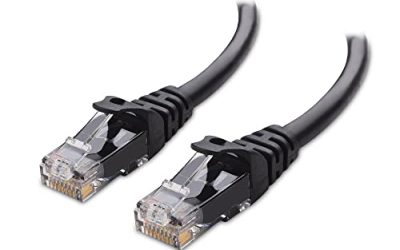
Look at the back of the desktop or the sides of the laptop for video outputs. The common ones are HDMI, DisplayPort and USB-C with video support, and older machines may have VGA or DVI. Your second monitor needs a matching input, and the cable has to fit both ends.
Desktops with a dedicated graphics card should connect monitors to the card, not the motherboard, unless the manual says otherwise. If you plug into the wrong port, the screen may stay blank. If your computer has only one free video port, a dock or a USB-C hub with video output can add more.
| Port | Where you see it | Good to know |
|---|---|---|
| HDMI | Most PCs, laptops and monitors | Easy to find and widely supported |
| DisplayPort | Graphics cards and many monitors | Often supports higher refresh rates |
| USB-C video | Newer laptops | Check that the port supports video output |
| DVI or VGA | Older equipment | May need an adapter and limits quality |
Connect and Extend the Displays
Step 1: Plug In and Power Up
Connect the cable from the new monitor to your PC, then turn the monitor on and set it to the right input using its on-screen menu. Windows usually detects the screen within a few seconds, and the desktop may flicker once.
Step 2: Choose a Display Mode
Press the Windows key and P to open the projection menu. The options are PC screen only, Duplicate, Extend and Second screen only. Pick Extend to treat both monitors as one large desktop. Use Duplicate for presentations, where both screens should show the same picture.
Step 3: Arrange the Screens
Right-click an empty area of the desktop and select Display settings, or open Settings, System, then Display. You will see numbered rectangles. Click Identify to show a number on each real monitor, then drag the rectangles into the same left-to-right order as your desk. Your mouse then moves smoothly between screens in the direction you expect.
Step 4: Set the Main Display
Click the rectangle for the screen you use most, scroll to the multiple displays section and check the option to make it your main display. The taskbar and new windows will appear there by default, and you can also set taskbar behavior for the second screen in the taskbar settings.
Fine-Tune Resolution, Scale and Refresh Rate
Windows normally picks the recommended resolution, which matches the monitor’s native setting. Keep it, since other values look blurry. If your monitors have different sizes or sharpness, adjust the scale setting for each one, so text and icons look similar when you drag a window across.
For smooth motion, open Advanced display in the same settings page and look for the refresh rate. Choose the highest option your monitor and cable support. If a high setting is missing, try a different cable or port, because older cables and some ports limit the refresh rate.
Orientation is another option. If you use a monitor vertically for documents or code, change the orientation to portrait and rotate the physical stand to match. Check that the screen order in the arrangement view still makes sense afterward.
Position the Monitors for Comfort
Software is only half the setup. Place the main monitor directly in front of you, with the top edge at or slightly below eye level and about an arm’s length away. Put the second screen right beside it, angled slightly inward, so you can turn your head without twisting your neck. If you use both equally, center the seam between them in front of you.
Match the heights as closely as you can, since mismatched stands make the mouse path feel uneven. Many monitors have adjustable stands, and a wall or desk arm gives more freedom. Keep the screens a similar distance from your eyes, and reduce glare by placing them away from windows.
Make Two Screens More Useful Day to Day
Pick a different wallpaper for each monitor, or one wide image that spans both, in the Personalization settings. A simple layout helps too: keep your main work, such as a document or code editor, on the primary screen, and put reference material, chat or email on the second one.
If one monitor is older, its colors may look different. Use the color and brightness options on the monitor itself, and consider Night Light in Windows for evening work, since it applies a warmer tone to every connected screen. For video calls, share only the window you need, not the entire desktop, to protect private content on the other screen.
Handy Windows Shortcuts for Two Screens
Windows includes shortcuts that make a second display more useful. Press the Windows key with the left or right arrow to snap a window to half the screen, and add Shift to move a window to the next monitor. The Windows key with P switches modes quickly when you plug in a projector or change setups.
You can also choose which screens show the taskbar and which show icons for open windows. If you present or stream often, set a favorite layout, then use the shortcut to return to it after unplugging.
Laptop Lid Closed or Open
Laptop owners can choose to keep the lid open and use the built-in screen as the second display, or close the lid and work only on the external monitor. In Control Panel, the power options include a setting for what happens when the lid closes; change it to do nothing if you want the external screen to stay active. Add a separate keyboard and mouse if the lid stays shut.
Before You Start
- Check the free video ports on your PC or dock.
- Match the cable type to both the PC and the monitor.
- Update your graphics driver before you connect.
- Place both monitors at a similar height and distance.
- Turn on both monitors and select the right input.
- Note which screen you want as the main display.
- Keep the original cable in case you need to troubleshoot.
Troubleshooting Common Problems
The Second Screen Is Not Detected
Open Display settings and use the Detect option under multiple displays. Check that the monitor is on, the input is correct and the cable is firmly seated at both ends. Try another cable or port to rule out a faulty one, and restart the PC if the screen still stays blank.
The Picture Looks Blurry or Stretched
Set the resolution to the recommended value, and check the scale setting for that display. A monitor connected through an adapter may default to a lower resolution, so confirm the setting after changing cables.
Windows Open on the Wrong Screen
Drag the window to the desired monitor, close it, then reopen it. Windows often remembers the last position. If it does not, check that your main display is set correctly.
Related guides
- Deep Heat Projectors For Reptile Enclosures
- Electrical Testing Tools For Diy Projects
- Wireless Chargers For Iphone And Airpods
Frequently Asked Questions
Can any laptop run dual monitors?
Many laptops can, using an HDMI port, a USB-C port with video or a dock. Check the maker’s specifications to see how many external screens your model supports.
Do both monitors need to match?
No. Different sizes and brands work together, although matching height and color settings makes the desk look more comfortable. Adjust scale for each screen if sharpness differs.
Why does my mouse jump to the wrong side?
The arrangement in Display settings does not match your desk. Drag the screen icons into the correct order and the mouse will move naturally.
Do I need a special graphics card?
Most modern PCs support at least two displays through built-in graphics. Check how many outputs your card or motherboard offers, and use a dock if you need more.
More from Amazon
Programs that pair well with the guide above. Offers and eligibility are set by Amazon and may change.
Free shipping on eligible items, Prime Video and more. Eligible new members can start with a free trial.
Start a Prime free trialAd-free music streaming. Eligible new subscribers can start with a free trial.
Try Music Unlimited freeA Prime membership for ages 18-24 with a trial period. Eligibility is set by Amazon.
See Prime for Young AdultsAudiobooks and podcasts to listen to on the go. Eligible new members can start with a free trial.
Try Audible freeAs an Amazon Associate we earn from qualifying purchases.